Usage Instructions
Get started with PDF-Insights in just a few steps.
PDF-Insights lets you upload PDF documents and ask questions in natural language. It is designed to make manuals, procedures, reports, and other documents easier to understand and use.
Open PDF-InsightsWhat You Can Do
- Upload PDF documents
- Ask questions about the document in plain language
- Get answers based on the document content
- Use PDF-Insights for manuals, training documents, procedures, reports, and more
Step 1: Go to the Application
Open the main application at users.pdf-insights.ai/ui/.
Step 2: Create an Account
Enter your username, email, and password to create an account, then log in.
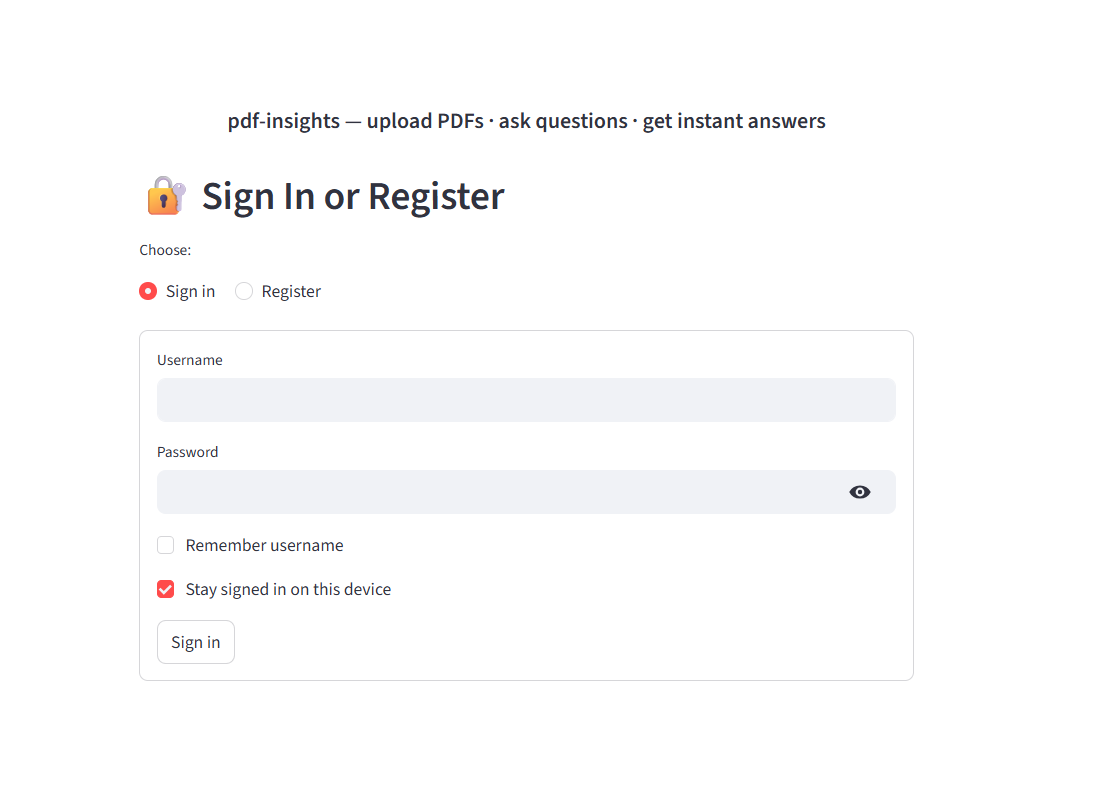
After logging in, you will see the main dashboard where you can upload documents and ask questions.
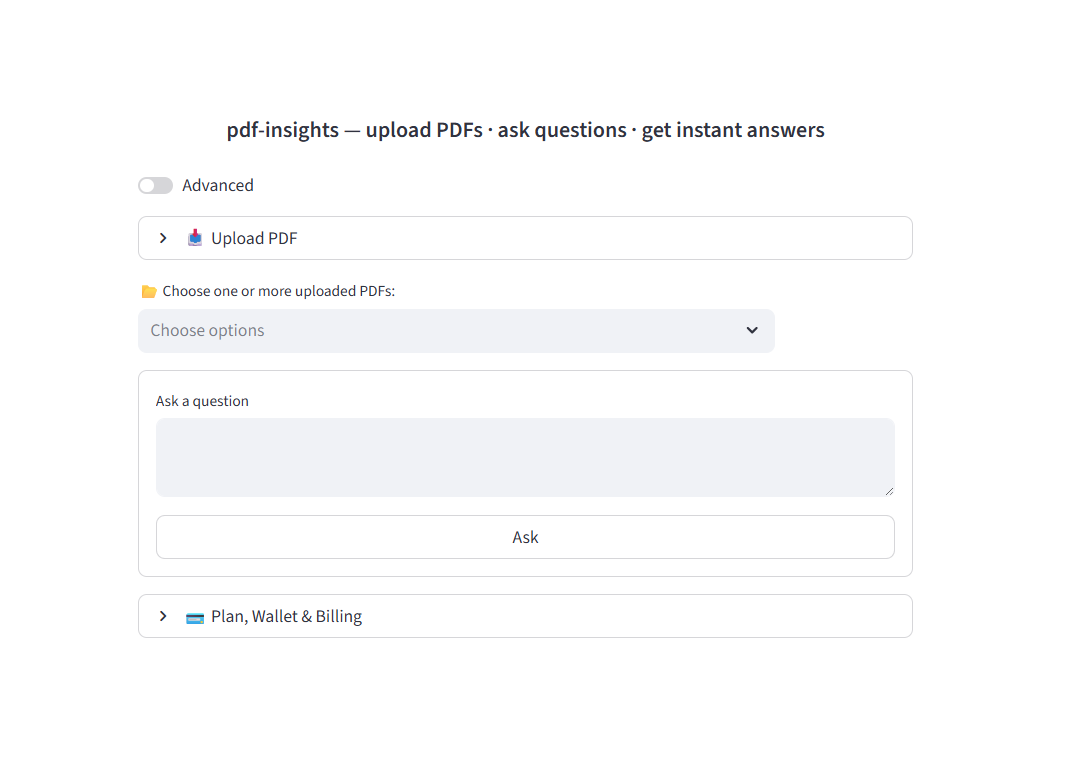
Plans and Features
PDF-Insights includes a $1 free trial so you can explore the system with no risk.
| Feature | Free | Budget | Standard | Pro |
|---|---|---|---|---|
| Trial credit | $1 | — | — | — |
| Storage limit | 50 MB | 100 MB | 250 MB | 1 GB |
| Max PDFs | 2 | 10 | 20 | 100 |
| Voice features | No | No | Yes | Yes |
| Custom assistant behavior | No | No | Yes | Yes |
Note: On Free and Budget plans, the assistant uses a standard behavior. Advanced customization is available on Standard and Pro plans.
Step 3: Upload a PDF
Choose a PDF file from your computer and upload it to the application. Once processed, it will be available for question-and-answer use.
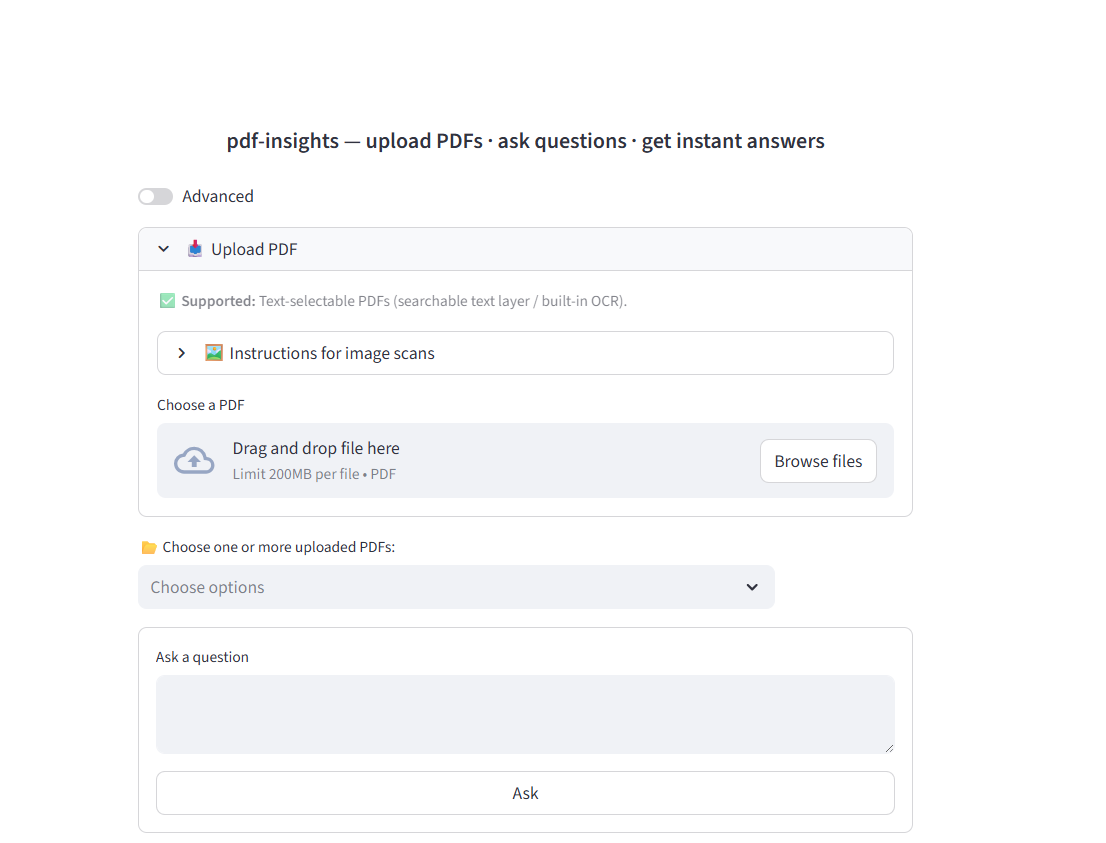
Step 4: Select Your Documents
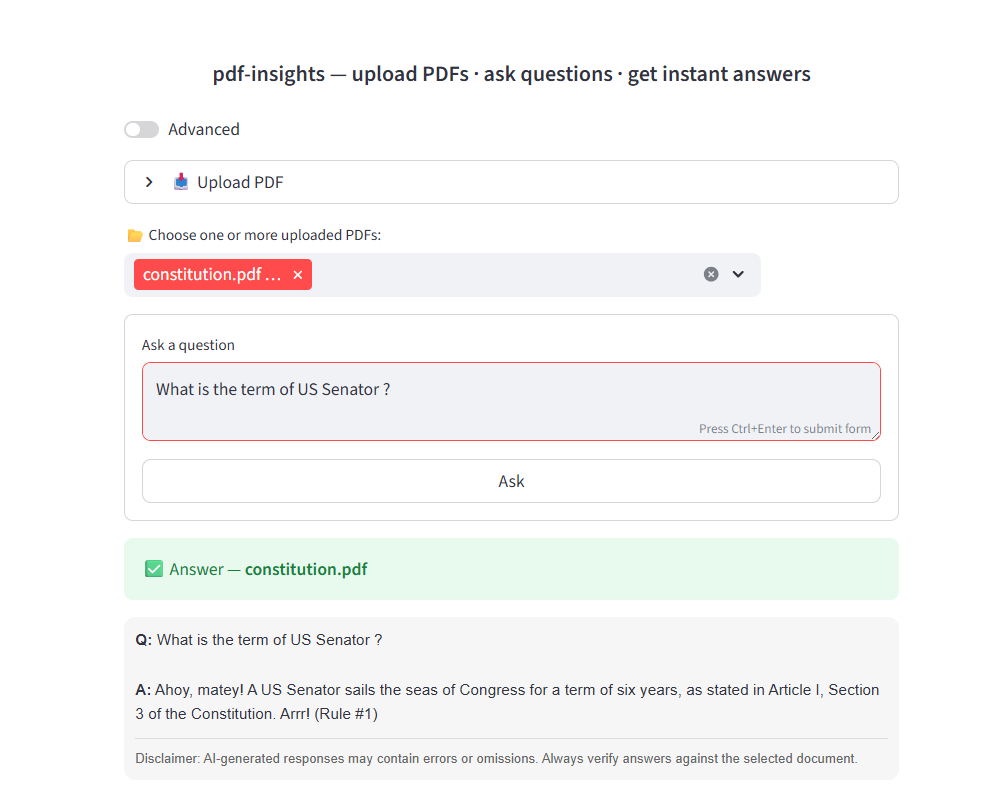
After uploading your PDF(s), select the documents you want to work with from the dropdown list. You can ask the same question across all selected documents.
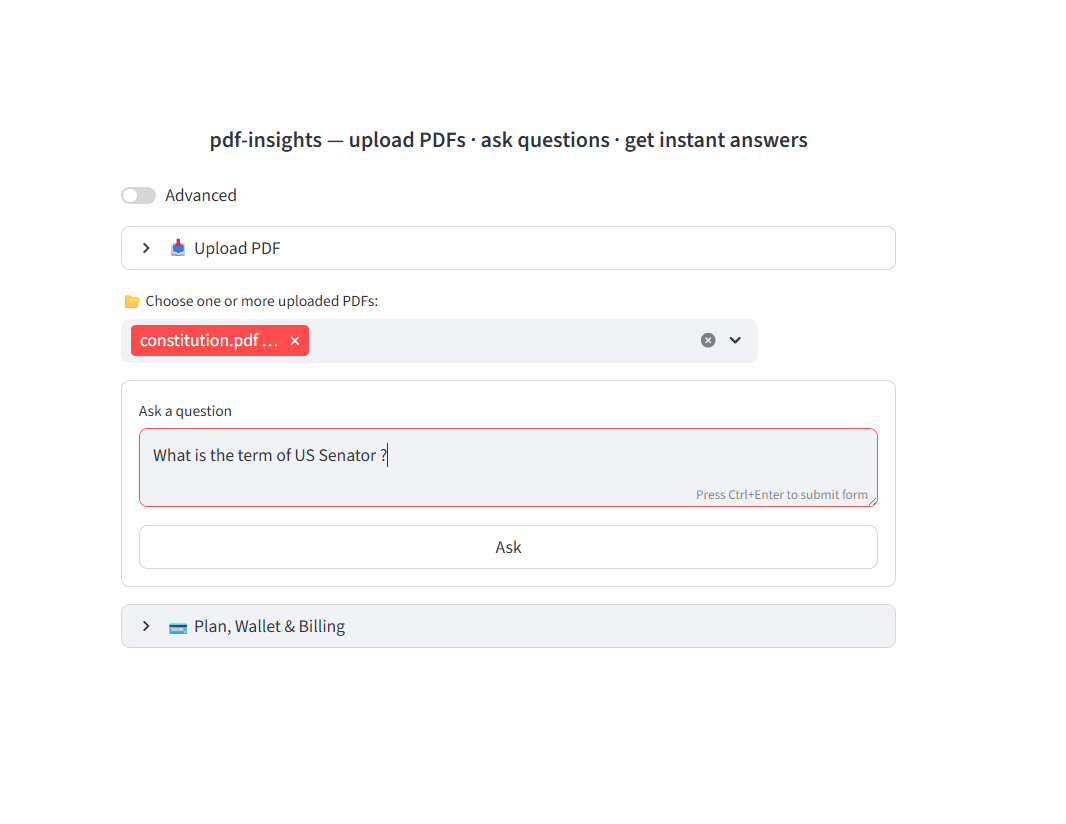
Step 5: Ask Questions
Type a question into the input box and submit it. PDF-Insights will answer based on the selected document or documents.
- What are the main safety warnings?
- Summarize these documents.
- What do these procedures say about startup?
- What maintenance steps are recommended?
Step 6: Review the Answer
PDF-Insights returns an answer based on the content of your selected document or documents. You can continue asking follow-up questions to explore details or compare information.
Tips for Better Results
- Ask clear, specific questions
- Use follow-up questions to narrow in on details
- Try asking for summaries, steps, warnings, definitions, or explanations
- If the document is large, begin with a summary question and then drill down
Developer API Access
For programmatic access, see the Developer API Documentation.
Need More Help?
Start with a simple upload and a simple question. In most cases, the fastest way to learn the platform is to use it on a document you already know well.